Code Editor Panel
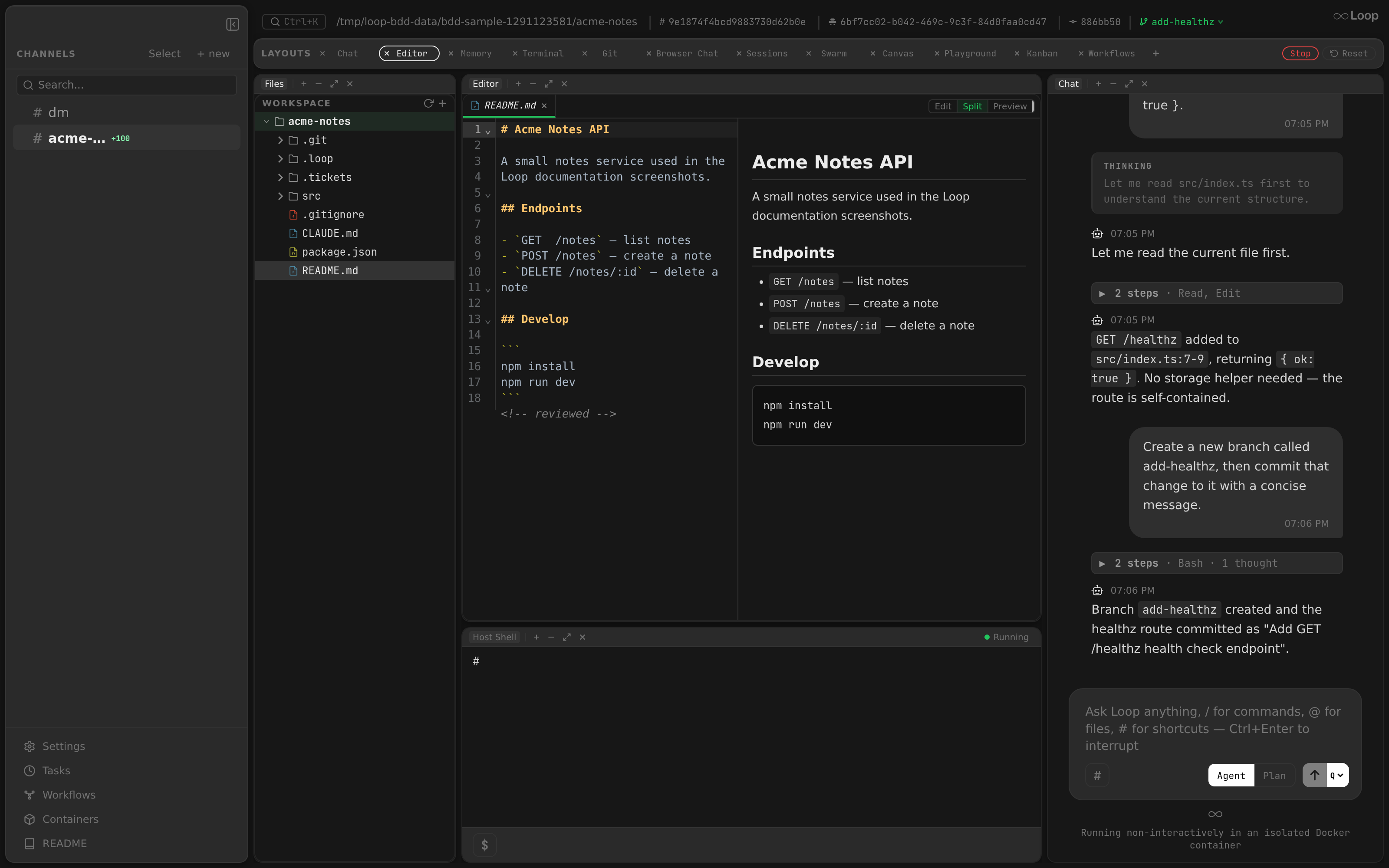
The editor panel provides a full-featured code editor with a file tree sidebar, multi-tab interface, and syntax highlighting. It uses CodeMirror 6 with a Darcula (dark) theme and communicates with the Go backend API for all file operations.
Related docs: Layouts | Desktop App
Architecture
The EditorPanel component (src/components/panels/EditorPanel.tsx) combines:
- A resizable file tree sidebar on the left
- A tab bar for open files
- A CodeMirror 6 editor for the active file
- An optional markdown preview pane for
.md/.mdxfiles - An HTML preview for
.html/.htmfiles, with a switch to the source
All file I/O goes through the backend REST API (/api/channels/{id}/files, /api/channels/{id}/file), not direct filesystem access. This ensures path traversal protection, Docker container support, and compatibility with browser development mode.
CodeMirror 6 Configuration
Theme
The editor uses a custom Darcula dark theme:
- Font: JetBrains Mono (loaded via
@fontsource/jetbrains-mono), 13px - Background:
colors.sidebar(#171717) - Text:
#a9b7c6 - Caret:
#bbbbbb - Selection:
#214283 - Active line:
rgba(255,255,255,0.04) - Matching bracket:
#3b514dbackground,#ffef28text - Gutter: same background as editor,
#606366text - Active gutter line:
colors.selectedBgbackground
The highlight style covers keywords (#cc7832), strings (#6a8759), numbers (#6897bb), comments (#808080 italic), doc comments (#629755 italic), function names (#ffc66d), types (#ffc66d), properties (#9876aa), and more.
Extensions
| Extension | Purpose |
|---|---|
lineNumbers() | Line number gutter |
highlightActiveLine() | Highlights the current line |
highlightActiveLineGutter() | Highlights the gutter for the current line |
drawSelection() | Custom selection rendering |
EditorView.lineWrapping | Soft line wrapping |
bracketMatching() | Matching bracket highlighting |
foldGutter() | Code folding controls in gutter |
gitChangeGutter | VCS change bars in the gutter — added/modified/deleted lines vs git HEAD (see VCS Change Markers ) |
history() | Undo/redo |
search({ top: true }) | Search panel at the top |
| Language extension | Syntax-specific highlighting (see below) |
Language Support
Language extensions are selected based on file extension:
| Extensions | Language |
|---|---|
.js, .jsx, .mjs, .cjs | JavaScript |
.ts, .tsx | TypeScript (with JSX for .tsx) |
.go | Go |
.py | Python |
.json, .jsonl | JSON |
.md, .mdx | Markdown |
.css, .scss | CSS |
.html, .htm, .svg | HTML |
.yaml, .yml | YAML |
Files with unrecognized extensions are opened without syntax highlighting.
File Tree Sidebar
Layout
The sidebar occupies the left side of the editor panel with:
| Property | Value |
|---|---|
| Default width | 280px |
| Minimum width | 120px |
| Maximum width | 500px |
| Persisted in | localStorage key loop-editor-tree-width |
Header
The tree header contains:
- “FILES” label – uppercase, dimmed
- Refresh button – reloads the root and all expanded directories, and re-reads the currently open file from disk
- New file button (
+) – opens an inline input for creating a new file
Directory Listing
Files are fetched from the API (GET /api/channels/{id}/files?path=<dir>). The root directory (.) is loaded on mount.
- Directories show a chevron icon that rotates on expand/collapse
- Clicking a directory toggles its expanded state and lazy-loads its contents if not yet fetched
- Files display with their name; clicking opens them in a tab
- The tree tracks expanded directories in a
Set<string>and directory contents in aMap<string, FileEntry[]>
Right-Click Context Menu
Right-clicking a file or directory opens a context menu with:
| Item | Available On | Action |
|---|---|---|
| Copy relative path | File, Directory | Copies relative path to clipboard |
| Copy absolute path | File, Directory | Copies dirPath + "/" + relativePath to clipboard |
| New file here | Directory only | Opens inline input prefilled with directory path |
| New directory here | Directory only | Opens inline input prefilled with directory path; creates via POST /api/channels/{id}/dir which supports nested creation (MkdirAll) |
| Delete | File, Directory | Deletes the file or directory via API. For directories, uses recursive removal (RemoveAll). Closes any open tabs whose paths fall within a deleted directory. |
Multi-Root File Tree
When a project has extra directories configured (via Settings or .loop/config.json → extra_dirs), the file tree displays multiple roots. Each root appears as a top-level entry labeled with its directory name. File operations within each root use the corresponding root query parameter index (0 for the primary directory, 1+ for extras).
This is useful for multi-root projects where related code lives in separate directories — for example, a backend service and a shared library, or a monorepo with multiple packages.
Worktree threads inherit the parent channel’s roots. A worktree thread has its own working directory, but its file tree is resolved with a three-layer merge (global → parent → worktree), so it shows the worktree dir plus the parent channel’s configured extra_dirs (and the parent project dir itself) — the same roots the agent container gets, not just the worktree’s own directory.
Resize Handle
A 4px-wide handle on the right edge of the tree allows horizontal resizing:
- Cursor changes to
col-resizeon hover - Drag updates width live (clamped to min/max)
- Final width is saved to
localStorage user-select: noneis applied during resize to prevent text selection
Tab System
Opening Tabs
- Clicking a file in the tree opens it in a new tab (or switches to it if already open)
- Tabs are displayed horizontally above the editor
- The active tab is highlighted
Dirty Tracking
- Any edit marks the tab as dirty (tracked in
dirtyTabsSet) - Dirty tabs show a dot indicator next to the filename
- The
dirtyContentRefMap caches unsaved content in memory so it survives tab switches without triggering auto-save
Closing Tabs
- Each tab has a close button
- Closing the active tab auto-selects the adjacent tab
- If auto-save is enabled, the file is saved before closing
- Dirty content cache is cleared for the closed tab
Persistence
Tab state (open tabs and selected tab) is persisted in localStorage:
- Key:
loop-editor-tabs(standalone) orloop-layout-editor-tabs(embedded in layout) - Format:
Record<channelId, { tabs: string[]; selected: string | null }> - Saved on every tab open, close, or switch
Auto-Save on Blur
Auto-save is controlled by the autoSaveOnBlur setting (default: true, configurable in Settings
).
Behavior
| Trigger | Action |
|---|---|
| Window blur | If auto-save enabled, saves all dirty tabs |
| Tab switch | If auto-save enabled, saves the current tab; otherwise, caches content in dirtyContentRef |
| Tab close | If auto-save enabled, saves before closing |
| Component unmount | If auto-save enabled, saves all dirty tabs |
The autoSaveOnBlurRef Pattern
The auto-save setting can change at any time. To avoid stale closures in cleanup functions and callbacks, the setting is stored in a useRef (autoSaveOnBlurRef) that is updated on every render. Cleanup functions and event handlers read from the ref instead of the state value.
Window Focus Reload
When the window regains focus, the editor reloads the currently open file from disk. If the content differs from the editor state (indicating an external edit), the editor is updated and the dirty flag is cleared.
Dirty Content Cache
The dirtyContentRef is a Map<string, string> that stores unsaved editor content in memory.
Purpose: When switching tabs, if a file has been edited but not saved (and auto-save is disabled), the unsaved content must be preserved. Since CodeMirror creates a new editor state on tab switch, the dirty content is snapshot into this map before switching away and restored when switching back.
Lifecycle:
- On tab switch away: if dirty, snapshot
view.state.doc.toString()into the map - On tab switch to: if the path exists in the map, use cached content instead of fetching from disk
- On save: remove the path from the map
- On tab close: remove the path from the map
File Operations
All operations go through the Go backend API for security.
| Operation | API | Notes |
|---|---|---|
| List directory | GET /api/channels/{id}/files?path=<dir> | Returns FileEntry[] with name, type, size |
| Read file | GET /api/channels/{id}/file?path=<path> | Returns text content; images, videos and PDFs as raw bytes with their MIME type; X-File-Binary: true header for other binary files |
| Save file | PUT /api/channels/{id}/file?path=<path> | Body is raw file content. Appends trailing newline if missing. |
| Delete file | DELETE /api/channels/{id}/file?path=<path> | Removes file from disk |
| Create file | PUT with empty body | Same as save with empty content |
Binary File Detection
The backend checks the first 512 bytes for null bytes. If detected, the response includes X-File-Binary: true header and the editor shows a “Binary file” message instead of attempting to render.
Image Files
For files whose extension is .png, .jpg/.jpeg, .gif, or .webp, the backend skips the binary header and returns the raw bytes with a real image/* Content-Type (see API: GET /api/channels/{id}/file
). In the editor, useEditorState recognises the extension at every fetch site — initial mount, tab switch, refresh tree, window focus, and agent-driven refresh — and skips the text fetch entirely. Instead it exposes an imageURL pointing back at the same endpoint; CodeEditor renders it as <img src={imageURL}> (centered, object-fit: contain, scrollable container) in place of the CodeMirror surface.
The URL carries an imageVersionRef cache-buster (?t=<n>). The counter bumps when the agent overwrites the file (tool.use for Write/Edit/MultiEdit), when the window regains focus, and on the manual refresh button — forcing the browser to re-fetch even though the URL would otherwise be byte-identical. imageURL is cleared on close or when switching to a non-image tab so the placeholder slot doesn’t leak across tabs.
Pairs with Chat: Paste Images
— pasted images land under .loop/pastes/ and their path renders as a clickable file link
; clicking opens this image tab.
Video Files
.mp4, .webm and .mov files follow the same URL-backed path as images and render as a <video controls> player. The backend streams them with Range support so the player can seek.
PDF Files
.pdf files also take the URL-backed path, but CodeEditor hands the URL to PdfViewer, a pdf.js (pdfjs-dist
) viewer loaded with React.lazy so pdf.js stays out of the main bundle until the first PDF tab opens. The backend streams PDFs like videos, so they aren’t subject to the 5MB cap below.
- Pages: stacked vertically on a scrollable pane. Each page renders to a canvas only while it’s near the viewport and frees its bitmap when scrolled far away, so long documents stay light. Canvases render at the screen’s pixel ratio, capped at pdf.js’s 2²⁵-pixel limit per page.
- Text: a pdf.js text layer sits over each canvas, so page text can be selected and copied.
- Toolbar: zoom out / zoom in (steps 25%–400%), Fit width (the default, re-fitting as the pane resizes), and a
Page N / Mindicator that follows the scroll position. Ctrl/Cmd + wheel (and trackpad pinch) zooms too. - Refresh: the same
imageVersionRefcache-buster as images. When the file changes, the viewer reloads it and keeps the previous render on screen until the new one is ready. - Password-protected PDFs aren’t supported; the viewer shows an error instead.
Maximum File Size
The backend enforces a 5MB maximum file size (maxFileSize = 5 * 1024 * 1024). Files exceeding this limit return an error. The editor displays file sizes formatted as B, KB, or MB.
Path Validation
The Go backend’s validateFilePath() function rejects:
- Empty paths
- Absolute paths (starting with
/) - Path traversal (
..segments) - Symlinks that escape the project root directory
Markdown Preview
For .md and .mdx files, the editor shows a split view with:
- CodeMirror editor on the left
- Rendered HTML preview on the right (using the
markedlibrary)
The preview updates with a 300ms debounce after each edit. An Edit / Split / Preview switch in the tab bar picks the editor only, both side by side (the default), or the preview only.
HTML Preview
.html and .htm files open rendered, with a Source / Split / Preview switch in the tab bar (data-testid="preview-mode-{editor,both,preview}"). HTML files default to Preview; markdown and HTML each remember their own mode.
- Rendering: the editor buffer is shown in an
<iframe sandbox="allow-scripts" srcdoc>(data-testid="html-preview"), updated with the same 300ms debounce as markdown, so unsaved edits show up live. Withoutallow-same-originthe page runs in an opaque origin: its scripts run, but they can’t reach the app’s DOM, storage or API. - Relative assets:
htmlPreview.tsinjects a<base href>pointing at the file’s directory onGET /api/channels/{id}/raw/{root}/{path...}, socss/style.cssorimg/logo.pngload from disk. A page that declares its own<base>keeps it. - In-page links: with a
<base>,#sectionlinks would navigate the frame to the base URL, so a small injected script turns them into in-page scrolls. - There’s no scroll sync between source and preview; the frame’s opaque origin rules it out.
VCS Change Markers
Git change markers highlight uncommitted edits to the open file (relative to git HEAD), in two places:
Gutter Stripe
A thin per-line bar in the rightmost gutter column (hugging the code) marks each changed line:
| Marker | Meaning |
|---|---|
| Green bar | Added line |
| Blue bar | Modified line |
| Grey triangle | Lines were deleted at this point |
Overview Ruler
A 10px full-height strip to the right of the editor (data-testid="git-overview-ruler") maps every change onto the whole document — a bird’s-eye view of all changes regardless of scroll position. Consecutive same-kind lines are coalesced into one proportional block. Clicking anywhere on the ruler jumps the editor to the corresponding line. The ruler is hidden when the file has no uncommitted changes, and in markdown or HTML preview-only mode.
Data Source
Markers are derived client-side from the channel’s unified diff (GET /api/channels/{id}/diff — the same patch the Git panel
renders), combining staged, unstaged, and untracked hunks. They refresh on file open, save, agent edit (tool.use for Write/Edit/MultiEdit), and window focus — so they reflect the on-disk (last-saved) state versus HEAD, not live per-keystroke edits.
The gutter extension and its StateField live in editorGitGutter.ts; the overview ruler is editorGitOverview.tsx. Both share a single source of truth for the bar colours (gitGutterColors), which the editor theme also consumes so the colours track the active palette.
Keyboard Shortcuts
| Shortcut | Context | Action |
|---|---|---|
Cmd+S / Ctrl+S | Editor focused or window-level | Save the active file immediately |
Cmd+F / Ctrl+F | Editor focused | Open the search panel |
Cmd+H / Ctrl+H | Editor focused (via search keymap) | Open search and replace |
Cmd+G / Ctrl+G | Search panel open | Find next match |
| Fold/unfold shortcuts | Editor focused (via fold keymap) | Collapse/expand code blocks |
Tab | Editor focused | Insert indentation (indentWithTab) |
Cmd+Z / Ctrl+Z | Editor focused | Undo |
Cmd+Shift+Z / Ctrl+Y | Editor focused | Redo |
Editor Context Menu
Right-clicking inside the CodeMirror editor area opens a custom context menu with:
| Item | Condition | Action |
|---|---|---|
| Copy | Text selected | Copy selection to clipboard |
| Cut | Text selected | Copy and remove selection |
| Select All | Always | Select entire document |
| Find… | Always | Open the search panel |