Workspace Layouts
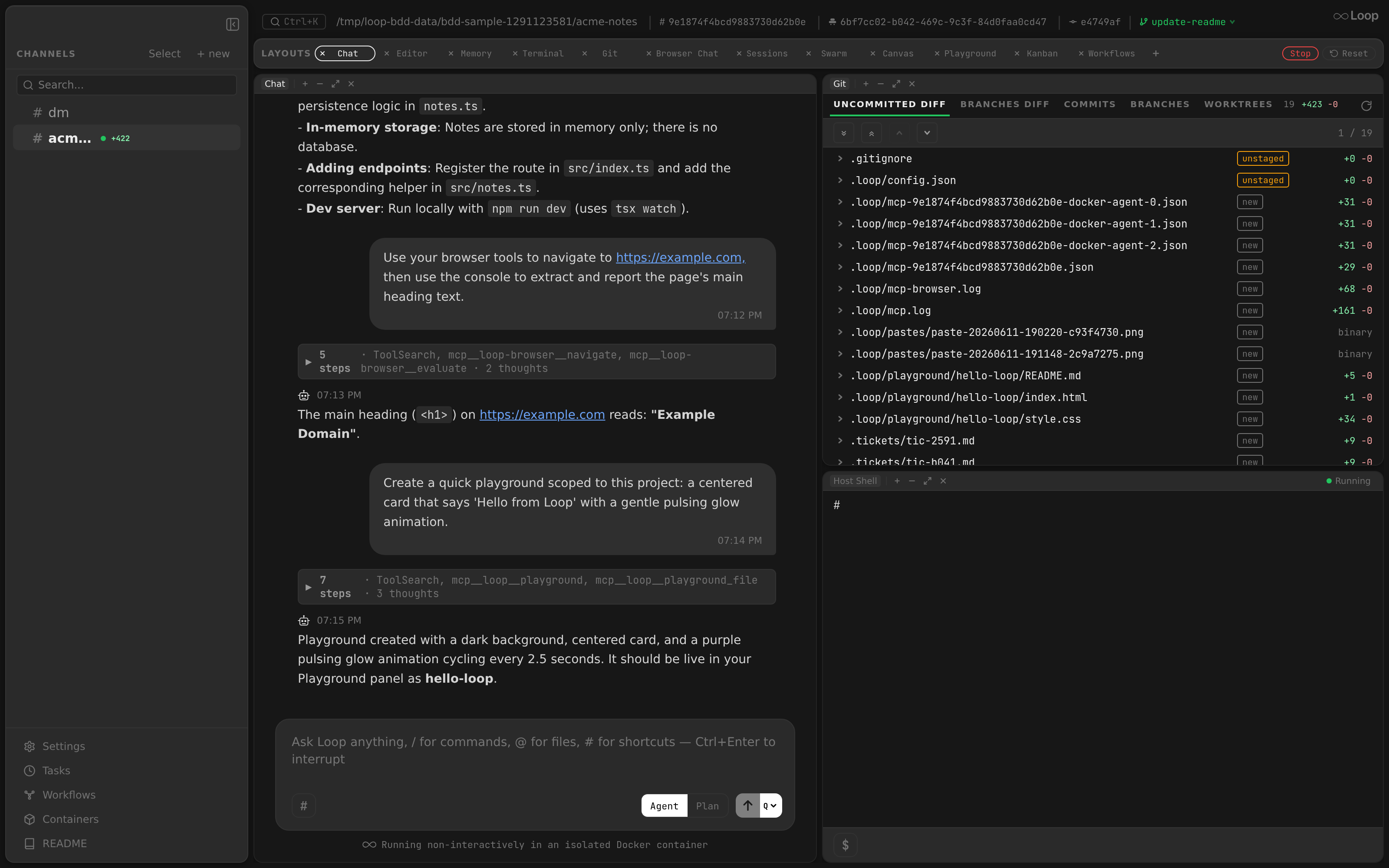
The workspace layout system supports two layout types: Split (flexible split-pane interface) and Canvas (free-form draggable tiles). Layouts are named, switchable, and persisted per channel. Each layout tab stores its type ("split" or "canvas").
Related docs: Chat | Editor | Desktop App
Layout Types
Split Layout
The default layout type. Panels are arranged in arbitrary horizontal and vertical splits using a recursive tree data structure (see Tree Data Structure below).
Canvas Layout
A free-form layout with draggable, resizable tiles on an infinite surface.
- Background: Dot grid pattern for spatial orientation.
- Pan: Scroll to pan the canvas viewport.
- Zoom:
Ctrl+Scroll(orCmd+Scroll) to zoom in/out. - Add tiles: Double-click an empty area or use the
+button in a tile header. - Tile controls: Each tile header has
+(add tile), maximize, and close buttons. - Bring to front: Click a tile to raise it above others.
- Singleton enforcement: Chat, Editor, Memory, Diff, Docker Browser, and Host Browser are limited to one tile per canvas (Docker Browser and Host Browser are also mutually exclusive). Agent and Shell can have multiple tiles.
- Auto-center: Tiles are centered in the viewport on first load and after a layout reset.
Islands Mode
When desktop.islands is enabled (the default), panels render as floating rounded cards over a deep canvas background. This applies to both Split and Canvas layout types:
- Split panes become individual islands with rounded corners, subtle shadows, and transparent gaps between them (replacing the old 1px border dividers).
- The sidebar floats as its own island.
- The layout tab bar becomes a rounded island strip.
- Overlay panels (Settings, Containers, Tasks, README) also get island styling.
The canvas color, corner radius, gap size, shadow, and border are defined per theme in the color palette. The dark theme has the strongest visual effect. Disable via "islands": false in the desktop config section. See Configuration: Desktop
.
Creating Layouts
New layouts can be created as either Split or Canvas from the + button in the tab bar. The layout type is stored per tab and cannot be changed after creation.
Tree Data Structure
Layouts are represented as a recursive tree of two node types:
LeafNode
A terminal node that renders a single panel.
interface LeafNode {
  type: "leaf";
  id: string;        // unique identifier (e.g., "chat", "editor", "docker-agent-0", "host-shell-1")
  panel: PanelType;  // determines which component to render
  flex: number;      // relative size weight within parent split
  openMode?: AgentOpenMode; // docker-agent only: "resume" | "fork" | "fresh"
}
openMode is persisted per leaf so that re-opening a layout boots each Chat Terminal pane in the same session-handling mode the user originally picked. Legacy persisted leaves and built-in defaults (e.g. the Swarm layout) omit it and fall through to "fork" – see Agent Open Modes
.
SplitNode
A container that splits its area between child nodes.
interface SplitNode {
  type: "split";
  direction: "vertical" | "horizontal";  // vertical = top/bottom, horizontal = left/right
  children: PaneNode[];                   // 2+ children
  flex: number;                           // relative size weight within parent split
}
PaneNode = LeafNode | SplitNode – the tree is recursive, allowing arbitrarily nested splits.
Panel Types
| Panel | Type | ID Pattern | Singleton? | Description |
|---|---|---|---|---|
| Chat | chat | "chat" | Yes | Chat with the agent (see chat.md ) |
| Editor | editor | "editor" | Yes | File browser and code editor (see editor.md ) |
| Memory | memory | "memory" | Yes | Agent memory explorer |
| Git | git | "git" | Yes | Git diff viewer |
| Docker Browser | docker-browser | "docker-browser" | Yes | Chrome browser inside the Docker container |
| Host Browser | host-browser | "host-browser" | Yes | Chrome browser on the host machine via CDP |
| Sessions | sessions | "sessions" | Yes | Browse and resume Claude sessions (channels only) |
| Notes | notes | "notes" | Yes | Freeform text notes (CodeMirror-based) |
| Tasks | tasks | "tasks" | Yes | Scheduled task management UI (see scheduling.md ) |
| Kanban | kanban | "kanban" | Yes | Ticket board with status columns (see kanban.md ) |
| Workflows | workflows | "workflows" | Yes | DAG workflow runs with interactive graph visualization (see workflows.md ) |
| Audit | audit | "audit" | Yes | Agent gate audit logs — file list on the left, tail -f via docker exec on the right (see gates.md
) |
| Quality | quality | "quality" | Yes | Architectural quality signal (see quality.md ) |
| Review | review | "review" | Yes | Load a GitHub PR into a local worktree, run an agent review pass, and push inline comments back to the PR (see review.md ) |
| Playground | playground | "playground-N" | No | Live interactive code sandbox (HTML/CSS/JS) |
| Side Chat | chat-side | "chat-side-N" | No | A side chat
: a chat with its own live session next to the channel’s, offered as Chat (Resume with fork) and Chat (Fresh session). The header reads Chat · fork or Chat · fresh. The pane’s side chat id is kept in localStorage under side-chats:<channelId> (pane id → side chat id); closing the pane deletes the side chat, and side chats with no pane left are deleted when the layout loads. |
| Chat Terminal | docker-agent | "docker-agent-N" | No | Docker-isolated terminal running Claude Code: Claude’s own terminal app on the channel’s session, for its slash commands (/model, /compact, /context) and the Swarm. Labelled “Docker Agent” before; only the label changed, so saved layouts keep their docker-agent leaves as they are. The pane-split menu and EmptyLayoutPicker expose three variants — Resume, Resume with fork, Fresh session — that choose how the pane boots Claude relative to the channel’s stored session (see Agent Open Modes
below). |
| Host Shell | host-shell | "host-shell-N" | No | Local machine shell session |
| Docker Shell | docker-shell | "docker-shell-N" | No | Plain bash shell inside the Docker container (no Claude) |
Singleton panels (chat, editor, memory, git, docker-browser, host-browser, sessions, notes, tasks, kanban, workflows, audit) can appear at most once in a layout tree. The canAddPanel() function enforces this: if the panel type is in SINGLETON_PANELS and already present in the tree, the add operation is rejected.
Hidden layout tabs: The Sessions tab is hidden from the layout tab bar in threads; the Review tab is hidden unless the channel has reviews enabled. Every other tab, Kanban included, is available in channels, threads and worktree threads alike.
Multi-instance panels (chat-side, docker-agent, host-shell, docker-shell, playground) can appear multiple times. Each instance gets a unique numbered ID (e.g., docker-agent-0, host-shell-1, docker-shell-0, playground-0) from a per-channel counter.
Chat Terminal vs Docker Shell: Both connect to the same docker container (target: "agent"), so files and processes are shared. Chat Terminal launches Claude Code on connect; Docker Shell sends cmd: ["/bin/bash"] to bypass the Claude bootstrap and land on a plain bash prompt. Either pane type keeps the container alive — hasAgentLeaf() returns true for both.
Exclusive panels are singleton panels that are mutually exclusive – only one from each exclusive group can exist in a layout at a time. If one is present, the others in the same group are greyed out and disabled in the split menu.
const EXCLUSIVE_PANELS: PanelType[][] = [
  ["docker-browser", "host-browser"],
];
The canAddPanel() function checks both singleton and exclusive constraints.
Named Layouts
Each channel has an ordered list of named layouts, displayed as a tab bar above the workspace content.
Default Layouts
Default layouts are created for every new channel:
| Name | Structure | Notes |
|---|---|---|
| Chat | Horizontal split: Chat (50%) + (Git 70% over Host Shell 30%, stacked) | |
| Editor | Horizontal split: (Editor + Host Shell stacked, 65%) + Chat (35%) | |
| Memory | Single leaf: Memory | |
| Git | Single leaf: Git | |
| Browser Chat | Horizontal split: Chat (30%) + (Docker Browser 70% over a 30% row of Git 50% | Host Shell 50%) | |
| Sessions | Single leaf: Sessions | Channels only — hidden for threads |
| Swarm | Three Chat Terminal panels in a split |
The “Chat” layout is the initial active layout.
Layout Operations
| Operation | How | Behavior |
|---|---|---|
| Switch | Click a layout tab | Saves current tree, loads the target layout’s tree from storage. Terminal sessions are cleared. |
| Create | Click + button next to tabs | Creates a new Split or Canvas layout with auto-generated name (Layout 1, Layout 2, …). Split layouts start empty – user picks the first panel from the EmptyLayoutPicker. |
| Rename | Double-click the tab label | Opens an inline text input. Commit with Enter, cancel with Escape or blur. Rejects empty names and duplicates. |
| Delete | Click x on the tab | Shows a confirmation popover (“Delete? Yes / No”) with an upward-pointing arrow. Kills any running terminal sessions. Cannot delete the last remaining layout. |
| Reset current | Click “Reset” dropdown > “Reset current” | Restores the active layout to its default tree (only available for default layout names). Kills running terminals. |
| Restore defaults | Click “Reset” dropdown > “Restore defaults” | Re-adds any previously deleted default layouts. Only shown when at least one default layout was removed. |
When a default layout is deleted, its name is tracked in a removed list so ensureDefaultLayouts() does not re-add it on next load. “Restore defaults” clears this list.
Persistence
All layout state is stored in localStorage under the key loop-workspace-layout. The persistence logic lives in app/src/layouts/persistence.ts.
Storage Format
Record<channelId, {
  version: number;                   // migration version (current: 13)
  active: string;                    // name of the active layout
  layouts: Record<string, PaneNode>; // layout name -> tree (split layouts)
  order: string[];                   // tab display order
  removed?: string[];                // deleted default layout names
  types?: Record<string, "split" | "canvas">; // layout name -> type
}>
The tree is saved whenever it changes (on every split, remove, flex update, or drop operation). The active layout name is saved on switch.
Versioned Migrations
Persisted data is migrated on load via a versioned migration system. Each channel’s data stores a version field. On load, migrations run sequentially from the stored version up to CURRENT_VERSION.
const migrations: Record<number, (data: ChannelData) => ChannelData> = {
  1: removeDefaultLayout,
  2: renameBrowserToBrowserChat,
  3: addTypesMap,
  4: migrateBrowserToDockerBrowser,   // "browser" panel type -> "docker-browser"
  5: addSessionsLayout,
  6: updateEditorLayout,              // Editor + Host Shell + Chat pane
  7: addPlaygroundLayout,
  8: renameDiffToGit,                 // "Diff" tab -> "Git", panel:"diff" -> "git"
  9: addKanbanLayout,
  10: addWorkflowsLayout,
  11: renameAgentShellPanels,         // panel:"agent" -> "docker-agent", "shell" -> "host-shell" (rewrites leaf IDs too)
  12: splitFileTreeFromEditor,        // wraps editor leaves in Split.h[file-tree, editor]; refreshes Editor
  13: updateChatAndBrowserLayouts,    // Chat gains a host shell under Git; Browser Chat -> 30% chat + a host shell beside Git
};
New migrations increment CURRENT_VERSION and add an entry to the migrations map.
Container Stats Readout
The chat panel header and every Chat Terminal pane header (split and canvas layouts alike) show a compact live resource readout on their right side — 12% · 384M — for the container backing the panel: the chat panel reads the channel’s agent container, Chat Terminal panes read the shared shell container all three open modes exec into. One useContainerStats poll per workspace hits GET /api/channels/{id}/container-stats
every ~3s (paused while the window is hidden); hovering the readout shows the container id and exact CPU/memory-of-limit numbers. Nothing renders when no container is running.
Drag-to-Split
Panels can be rearranged by dragging their headers.
Drag Source
Each pane has a PaneLeafHeader component (22px tall) with draggable set. On drag start:
- The leaf ID is stored in the drag data transfer with MIME type
application/x-panel-drag. - A custom event
layout-drag-startis dispatched to activate drop zones across all panes.
Drop Zones
The DropZoneOverlay component covers each pane’s content area (below the header). It divides the area into 5 zones based on cursor position:
| Zone | Cursor Region | Result |
|---|---|---|
| Top | Top 25% | Vertical split, new pane above |
| Bottom | Bottom 25% | Vertical split, new pane below |
| Left | Left 25% (middle 50% height) | Horizontal split, new pane left |
| Right | Right 25% (middle 50% height) | Horizontal split, new pane right |
| Center | Center area | Swap the two panes (no split) |
Active zones are highlighted with a blue translucent overlay (rgba(96, 165, 250, 0.15) fill, rgba(96, 165, 250, 0.5) border).
Dropping on the header of another pane also triggers a center (swap) drop.
Divider Resizing
Split nodes render a 4px divider between each pair of children. The divider:
- Uses
cursor: row-resizefor vertical splits,cursor: col-resizefor horizontal splits. - Contains a centered 24px grip indicator (2px wide/tall,
colors.textDimat 50% opacity).
Resize Behavior
On mousedown:
- The body cursor is set to the appropriate resize cursor.
user-select: noneis applied to prevent text selection.- Mouse movement converts pixel deltas to flex deltas using
pixelsPerFlex = containerSize / allFlex. - A minimum flex of 0.15 is enforced on both sides (approximately 15% of the combined flex).
- On mouseup, cursor and selection are restored.
Tree Operations
All operations are immutable – they return new tree objects.
| Function | Signature | Description |
|---|---|---|
makeLeaf | (id, panel, flex?) -> LeafNode | Create a new leaf node |
findLeafById | (node, id) -> LeafNode | null | Recursive search by leaf ID |
splitLeaf | (node, leafId, direction, newLeaf) -> PaneNode | Split a leaf into a SplitNode containing the original + new leaf |
removeLeaf | (node, id) -> PaneNode | null | Remove a leaf; if parent split has one child left, promote it |
updateFlex | (node, parentPath, dividerIdx, flexA, flexB) -> PaneNode | Update flex values for a divider’s adjacent children |
swapLeavesInTree | (tree, idA, idB) -> PaneNode | Swap two leaves’ positions (preserving flex) |
moveLeaf | (tree, dragId, dropId, position) -> PaneNode | Remove dragged leaf, then split the drop target to insert it |
collectLeaves | (node) -> LeafNode[] | Flatten all leaves in the tree |
leafCount | (node) -> number | Count total leaves |
canAddPanel | (tree, panel) -> boolean | Check singleton and exclusive constraints |
hasAgentLeaf | (node) -> boolean | Check if any leaf has panel === "docker-agent" or panel === "docker-shell" (either keeps the container alive) |
Panel ID Allocation
Multi-instance panels (docker-agent, host-shell, docker-shell, playground) get IDs from a per-channel counter stored in idCounters (a Map<string, number>). The counter key is layout-<channelId>. When loading a layout from storage, initIdCounter() scans all leaf IDs to set the counter above the maximum existing numeric suffix.
Singleton panels always use their panel type as the ID (e.g., "chat", "editor").
Singleton & Exclusive Enforcement
The canAddPanel() function prevents adding duplicate singleton panels and mutually exclusive panels:
// In app/src/types/panels.ts
const SINGLETON_PANELS: PanelType[] = ["chat", "editor", "memory", "git", "docker-browser", "host-browser", "sessions", "notes", "tasks", "kanban", "workflows", "audit"];
const EXCLUSIVE_PANELS: PanelType[][] = [["docker-browser", "host-browser"]];

function canAddPanel(tree: PaneNode | null, panel: PanelType): boolean {
  if (!tree) return true;
  const existing = collectPanelTypes(tree);
  if (SINGLETON_PANELS.includes(panel) && existing.has(panel)) return false;
  for (const group of EXCLUSIVE_PANELS) {
    if (group.includes(panel) && group.some((p) => existing.has(p))) return false;
  }
  return true;
}
In the PaneSplitMenu, singleton panels that are already present and exclusive panels blocked by a sibling are rendered with opacity: 0.35 and disabled.
Agent Open Modes
Chat Terminal panes choose up front how Claude Code boots relative to the channel’s stored session. The pane-split menu (+ button on any pane header) and the EmptyLayoutPicker (shown when a Split layout has no tree) both expand the single “Chat Terminal” entry into three labelled variants:
| Label | openMode value | Behavior |
|---|---|---|
| Chat Terminal (Resume) | "resume" | Resume the channel’s existing Claude session in place. Falls back to a fresh session when the channel has no stored session_id. |
| Chat Terminal (Resume with fork) | "fork" | Resume the stored session with the fork flag set so the new run gets its own session id without losing the parent context. Auto-disabled (treated as "resume") when the channel has no session_id. |
| Chat Terminal (Fresh session) | "fresh" | Ignore the stored session_id entirely — Claude starts a new conversation. |
The picked mode is written to LeafNode.openMode and (for Canvas layouts) CanvasTile.openMode, then sent to the terminal WebSocket as the open_mode field on the create message (see terminal.md
).
// app/src/types/panels.ts
type AgentOpenMode = "resume" | "fork" | "fresh";
Side chat panes (chat-side) take an open mode too, from fork and fresh only: resuming the channel’s session in place is the Chat pane’s. The menus show them as Chat (Resume with fork) and Chat (Fresh session); the mode is sent to POST /api/channels/{id}/side-chats
when the pane opens.
Default for layouts created before this feature (and for the built-in Swarm layout, which spawns three Chat Terminal leaves without explicit modes): WorkspaceLayout resolves leaf.openMode ?? "fork" when sending create, preserving the previous auto-fork behavior.
Tab Bar UI
The layout tab bar sits between the workspace header and the layout content area. It contains:
- “Layouts” label – uppercase, 10px, dimmed text
- Layout tabs – pill-shaped buttons (12px border-radius) with the layout name
- Active tab:
colors.surfacebackground,colors.textLightborder and text - Inactive tab: transparent background,
colors.textDimtext, hover showscolors.hoverBg - Each tab has an
xbutton for deletion (only shown when more than 1 layout exists)
- Active tab:
+button – creates a new layout- Kill button – red-bordered pill, only visible when agent state is “running”. Kills all agent/shell sessions and the channel’s containers at once. Closing a pane or a tab only closes its sessions; the shared shell container is marked for removal once no pane in any tab has a session in it.
- Reset button – opens a dropdown with “Restore defaults” and/or “Reset current”
State Management in WorkspaceLayout
The WorkspaceLayout component manages:
| State | Type | Purpose |
|---|---|---|
layoutNames | string[] | Ordered list of layout tab names |
activeName | string | Currently active layout name |
tree | PaneNode | null | Current layout tree (null = empty layout) |
agentState | "running" | "stopped" | "none" | Aggregate state of all terminal panes |
showLayoutMenu | boolean | Whether the Reset dropdown is open |
Chat State Hoisting
The useChatState hook is called in WorkspaceLayout, not in ChatView. This ensures the WebSocket connection and message state persist when the user switches between layouts. ChatView receives the ChatState as props and can mount/unmount freely without losing messages or connection state.
Agent State Tracking
Each terminal pane (agent or shell) reports its SessionStatus via onPaneStatus. These are collected in statusMapRef (a Map of leaf ID to status). The aggregate agentState is computed as:
"none"– no terminal leaves exist"running"– at least one terminal is not completed/failed"stopped"– all terminals are completed or failed
The Kill button is only shown when agentState === "running".
Keyboard Shortcuts
| Shortcut | Action |
|---|---|
Cmd+E / Ctrl+E | Switch to the “Editor” layout |
This is handled in App.tsx via layoutRef.current?.switchToLayout("Editor").