Task Scheduling
Loop includes a built-in task scheduler that executes agent prompts or workflow runs on a recurring or one-time basis. Tasks are stored in the database, polled on a timer, and executed inside Docker containers.
See also: Configuration Reference
for poll_interval_sec and task_templates config fields. Docker Container Lifecycle
for how task containers are created.
Task Types
Each task has a type that determines how its schedule field is interpreted.
Cron ("cron")
Standard 5-field cron expressions, parsed by robfig/cron .
| Field | Values |
|---|---|
| Minute | 0-59 |
| Hour | 0-23 |
| Day of month | 1-31 |
| Month | 1-12 or JAN-DEC |
| Day of week | 0-6 or SUN-SAT |
Examples:
* * * * *        # every minute
0 17 * * *       # daily at 5:00 PM
0 9 * * MON-FRI  # weekdays at 9:00 AM
*/15 * * * *     # every 15 minutes
0 0 1 * *        # first day of each month at midnight
After each execution, the next run time is computed using sched.Next(now).
Interval ("interval")
Go duration strings. The next run is calculated as now + duration after each execution.
Examples:
5m       # every 5 minutes
30m      # every 30 minutes
1h       # every hour
2h30m    # every 2 hours 30 minutes
24h      # every 24 hours
Once ("once")
RFC3339 timestamps for single-execution tasks. The task is automatically disabled (enabled = false) after execution.
Examples:
2026-03-15T14:30:00Z          # UTC
2026-03-15T10:30:00-04:00     # with timezone offset
In the desktop UI, “once” tasks use a native date-time picker (stored as RFC3339 UTC) rather than a raw timestamp field.
Manual ("manual")
Manual tasks have no schedule and are never run by the poller. They exist as a saved prompt (or workflow) that you trigger on demand — “Run now” in the desktop Tasks panel, the run_task action, or POST /api/tasks/{id}/run. The schedule field is ignored (stored empty) and next_run_at is unused; listings show “on demand” instead of a next-run time.
Use a manual task for an on-demand routine you re-run periodically by hand (e.g. “summarise open notes”) without committing to a fixed cadence.
Task Lifecycle
1. Create
Tasks are created via:
- Slash commands:
/loop schedulewithtype,schedule, andpromptoptions. - Templates:
/loop template-addloads a pre-defined template from config. - MCP tools:
schedule_tasktool available to agents.
On creation:
calculateNextRuncomputes the firstnext_run_atbased on the task type and schedule.- The task is stored in the database with
enabled = true.
2. Poll
The scheduler runs a polling loop at a configurable interval (default 30 seconds, set via poll_interval_sec).
Each tick:
- Queries the database for tasks where
next_run_at <= now AND enabled = true AND running = 0. - Starts each due task on its own goroutine, so a long run doesn’t hold back the tasks due with it.
Stopwaits for the runs in progress.
Tasks that are already executing (running = 1) are excluded from the query, preventing the scheduler from re-triggering a long-running task. The scheduler also keeps each task it started in an in-flight set until its next_run_at has been updated: running clears just before that, and a tick in between would otherwise start the task again.
Stale-running sweep on startup
TaskScheduler.Start runs Store.ResetStaleRunningTasks(ctx) before the first poll tick (internal/scheduler/scheduler.go). The defer that clears running = 0 after a run fires inside executeAndLog, so a process killed mid-run (OOM, SIGKILL, panic, daemon restart) leaves rows flagged running = 1 that would otherwise be permanently invisible to GetDueTasks. The sweep clears those flags, logs the count at warn level (reset stale running tasks from prior daemon run), and lets the next tick pick the rows back up.
The orchestrator does the same thing for chat messages — Store.ResetStaleRunningMessages(ctx) is called from serve.go during daemon startup and broadcasts the cleared msg_ids on messages.processed so the chat UI clears any “processing” pills that would otherwise remain stuck after an unclean shutdown.
3. Execute
For each due task:
- The task is atomically claimed via
UPDATE ... SET running = 1 WHERE id = ? AND running = 0. IfRowsAffected = 0, another execution (e.g. a concurrent “Run Now”) already claimed it and execution is skipped. This prevents concurrent runs even under race conditions. - A deferred release (
running = 0) is registered so the flag is always cleared when execution finishes. - A
TaskRunLogrecord is inserted with status"running". - The task executor retrieves the channel from the database to get the session ID and work directory. Tasks with
workflow_namedelegate to the workflow engine (Scheduled Workflows ); tasks withbash_scriptrun the script directly (Scheduled Bash Scripts ); everything below applies to prompt tasks. - If the task has
worktree = true, a git worktree is created (see Worktree Isolation below). - An
AgentRequestis built with:- The task’s prompt as a user message. If
update_before_runis enabled andorigin_branchis set, git fetch/rebase instructions are prepended to the prompt. - A system prompt telling the agent its text responses are delivered to the task’s thread automatically, so it must not
send_messageinto that thread or the parent channel (or without achannel_id), and must not usecreate_threadorcreate_channel. The agent maysend_messageto a different channel by its ID, and may usequeue_messageto enqueue a follow-up prompt for itself in the task’s thread. - If
auto_delete_sec > 0, the system prompt also instructs the agent to prefix “nothing to report” responses with[EPHEMERAL]. - For subsequent local-platform runs (thread already exists), the agent is registered under the thread’s channel ID so the stop button in the thread view works.
- The task’s prompt as a user message. If
- The run’s cancel function is registered in the orchestrator’s
activeRunsmap, enabling the stop button and/loop stopcommand to cancel a running task. - The agent runs inside a Docker container (see Containers ).
- The run log is updated to
"success"or"failed"with the response or error text.
4. Update Next Run
After execution, the next run is determined by task type. “Now” is when the run finished, not when it was due, and a failed run moves on the same as a successful one:
| Type | Behavior |
|---|---|
cron | next_run_at set to the first matching time after the run finished, via the cron parser. Times that passed while the task waited or ran are skipped, not caught up. |
interval | next_run_at set to now + duration, so the schedule shifts by however long the run waited and ran. |
once | Task is disabled (enabled = false). No further runs. |
Scheduled Workflows
Instead of an agent prompt, a task can trigger a workflow run by setting workflow_name on the scheduled task. When the scheduler fires such a task, it delegates to workflow.Engine.StartRun instead of launching an agent in a Docker container.
Creating a Workflow Task
Use the same scheduling API/MCP tools as regular tasks, but provide workflow_name instead of (or in addition to) prompt:
// Via MCP tool
schedule_task({
  "schedule": "0 9 * * MON-FRI",
  "type": "cron",
  "workflow_name": "validate",
  "workflow_inputs": "{\"branch\": \"main\"}"
})
In the UI, the task create/edit form has a Prompt | Workflow | Bash mode toggle. Workflow mode is enabled when the channel has at least one workflow visible (merged global → parent → channel); the picker lists those workflows and renders inputs declared in the workflow definition, seeded with their defaults.
| Field | Description |
|---|---|
workflow_name | Name matching a workflows[] entry in config. When set, the task runs the workflow instead of an agent prompt. |
workflow_inputs | JSON object of inputs passed to StartRun. Must match the workflow’s inputs definition. |
Execution
When a workflow task fires:
- The executor detects
workflow_name != ""and branches early, skipping agent setup (worktree, session, streaming). - If
workflow_inputsis set and not"{}", it is parsed asmap[string]string. workflow.Engine.StartRunis called with the workflow name, channel ID, directory path, and inputs.- The returned run ID is recorded as the task run log’s response text (e.g.
"workflow run started: wfr-abc123"). - The workflow run executes asynchronously — the scheduler does not wait for workflow completion.
The task can be edited to change workflow_name or workflow_inputs via edit_task MCP tool or PATCH /api/tasks/{id}.
See also: Workflows for the full workflow engine documentation.
Scheduled Bash Scripts
The third task flavor: setting bash_script on a task runs a shell script instead of an agent prompt or a workflow. The script executes inside the channel’s agent container — same image, mounts, and syscall/proxy gates as agent runs, with the container timeout applied — via the same RunBash mechanism workflow script nodes use.
// Via MCP tool
schedule_task({
  "schedule": "0 8 * * *",
  "type": "cron",
  "bash_script": "df -h /work | tail -1"
})- Works with every schedule type (
cron,interval,once,manual). - The script’s output is posted to the thread as a bot message (fenced code block, truncated at ~3500 chars for chat); the task run log keeps the full output.
- On failure, the error is posted along with any partial output, and the run log records
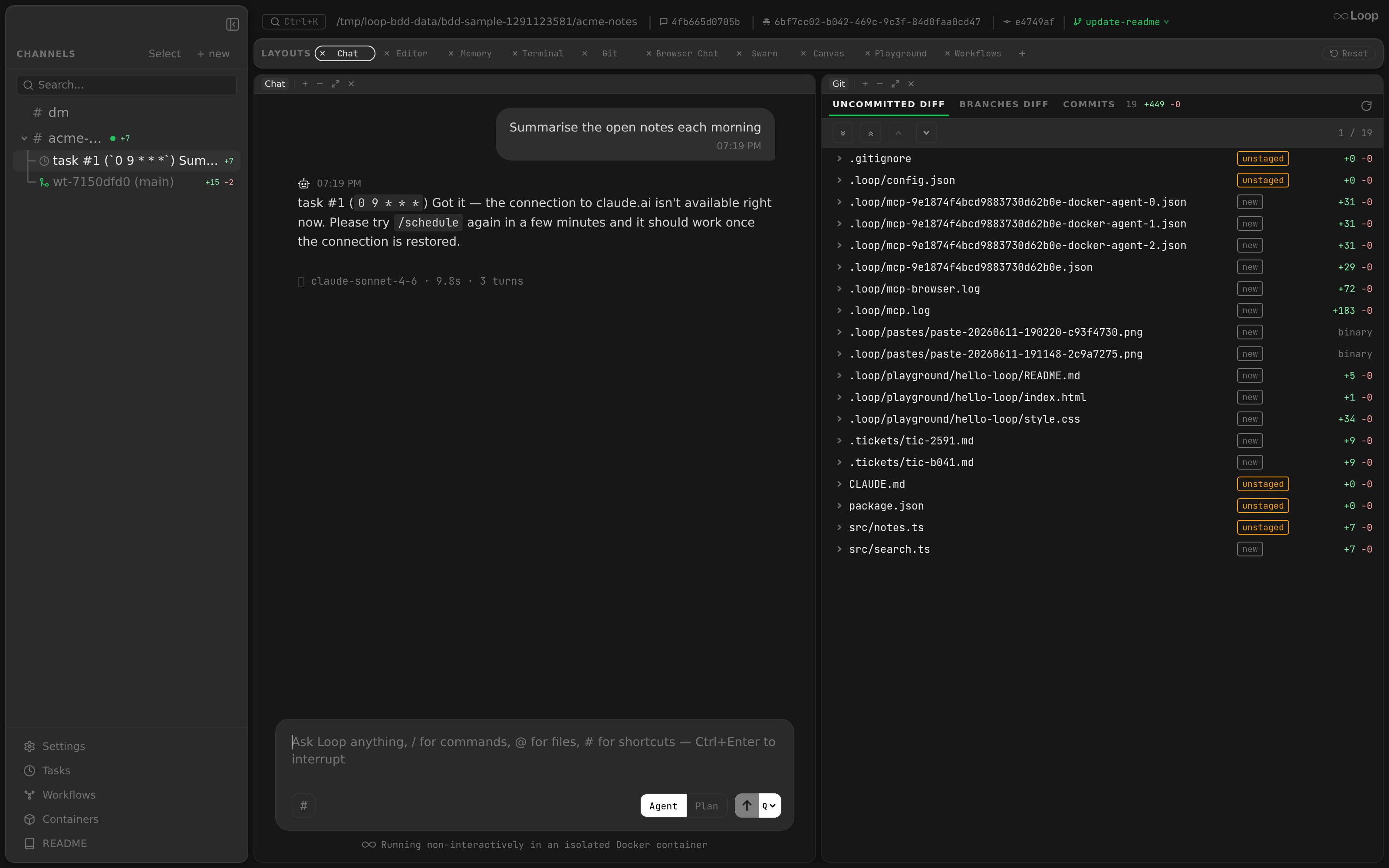
failed. bash_scriptis mutually exclusive withpromptandworkflow_name; the create/edit API, theschedule_task/edit_taskMCP tools, and the Tasks panels (per-channel and global, via the Bash mode with a monospace editor) all accept it.- Threads: bash tasks get the same thread behavior as prompt tasks — the first run creates a sub-thread before running the script (named
task #N (`schedule`) <script>), each run posts the script + output pair inside it, and recurring runs reuse the thread via the persistedthread_id.oncetasks get a thread without the link; if thread creation fails, output falls back to the channel; a deleted thread is recreated on the next run. - Worktrees:
worktree: trueworks exactly like prompt tasks — the first run creates.worktrees/task-<id>-<hex>fromorigin_branch(or the auto-detected branch, persisted), the thread is a worktree thread (itsDirPathpoints at the worktree), and recurring runs execute the script inside that worktree. - Bash tasks never resume an agent session — there is no agent involved.
Thread Creation for Scheduled Tasks
Task execution streams output to a thread.
Thread Reuse (Local Platform)
On the local platform (Electron app), recurring tasks (cron/interval) reuse the same thread across executions:
- First execution: A new thread is created before the run starts and its ID is stored in the task’s
thread_idcolumn. - Subsequent executions: Messages are posted to the existing thread instead of creating a new one.
- Once tasks: Always create a fresh thread (no reuse).
On Discord/Slack, a new thread is created for each execution (platform threads are ephemeral notification threads).
Thread Naming
Thread names differ by platform:
| Platform | Format | Example |
|---|---|---|
| Discord/Slack | ⏱ task #<ID> (<schedule>) <prompt> | ⏱ task #42 (*/5 * * * *) Check for new deployments... |
| Local | task #<ID> (<schedule>) <prompt> | task #42 (5m) Check for new deployments... |
- The schedule is wrapped in backticks to prevent Slack/Discord markdown from mangling cron asterisks.
- The full string is truncated to 100 characters.
- The Electron sidebar shows a clock SVG icon for task threads (instead of the emoji).
Thread Lifecycle
- Before the first run: A thread is created via
CreateSimpleThread(no bot @mention to avoid re-triggering the agent), after the worktree for worktree tasks. The run then happens in it from the start: on the local platform the agent is registered under the thread, and the prompt, tool calls and replies all land there rather than in the parent channel. - Turns: Messages are sent to the thread.
- Final response: Sent to the thread (or channel if thread creation failed). Duplicate detection prevents re-sending the last streamed turn.
- Thread channel record: A DB channel record is upserted for the thread, inheriting the parent channel’s guild, directory, platform, and permissions. It starts without a session: the first run forks the parent channel’s session and stores the result on the thread. For worktree tasks, the thread’s
dir_pathis set to the worktree path andworktree = true. - Permission users invited: All RBAC owner and member users are invited to the thread.
- UI notification: A
channel_createdevent is broadcast so the Electron app sidebar refreshes.
If thread creation fails, the executor falls back to sending messages directly to the parent channel.
Sub-Thread Resolution
When an agent running inside a task thread (sub-thread) schedules or lists tasks, the API automatically resolves the channel up to the parent thread. This ensures tasks are always associated with the correct parent rather than being nested deeper.
Moving a Task
A task can move to another thread or worktree thread of its project, or to its root channel, with the move_task MCP tool or POST /api/tasks/{id}/move, for example from a worktree thread to the root channel or back. Its settings, worktree and origin_branch included, don’t change. On the local platform its thread moves under the new owner: a task worktree keeps its directory, while a thread sharing its parent’s directory takes the new parent’s and brings its session transcript along. On Discord and Slack the task starts a fresh thread on its next run. A running task can’t be moved, and a task can’t leave its project (its root channel’s tree): re-create it in the other channel instead.
Worktree Isolation
Tasks with worktree = true run the agent in an isolated git worktree so changes don’t affect the main working directory.
How It Works
First run (no
thread_idyet):- The executor determines the base branch: if
origin_branchis set on the task, that value is used; otherwise, the current branch is auto-detected viagit rev-parse --abbrev-ref HEADand persisted toorigin_branchfor future runs. - A new worktree is created at
{dir_path}/.worktrees/task-{id}-{hex}on branchworktree/task-{id}-{hex}. - The worktree’s
.loop/config.jsonis seeded withextra_dirspointing back to the parent project. - The parent channel’s session file is copied so
--resume --fork-sessionworks. If that copy fails — usually because Claude Code already pruned the transcript (see Pruned transcripts ) — the task runs in a fresh session instead of forking one that isn’t there. - The agent runs in the worktree directory instead of the channel directory.
- The executor determines the base branch: if
Subsequent runs (recurring tasks with existing
thread_id):- The executor looks up the thread’s channel record and reuses its
dir_path, which already points to the worktree from the first run. - If
update_before_runis enabled andorigin_branchis set, the executor prepends git update instructions to the user prompt:git stash→git fetch origin {branch}→git rebase origin/{branch}→git stash pop. This keeps the worktree up to date with the latest upstream changes.
- The executor looks up the thread’s channel record and reuses its
Thread record: The thread channel created on first run has
worktree = trueand itsdir_pathset to the worktree path.
Requirements
- The channel’s
dir_pathmust be a git repository. Ifgit rev-parsefails (e.g., the directory is not a git repo), the task fails with a descriptive error. - Detached HEAD is supported – the executor falls back to the commit hash when
rev-parse --abbrev-ref HEADreturns"HEAD".
Config Inheritance
Tasks running in a worktree directory use a three-layer config merge: global → parent project → worktree. This ensures settings like claude_model, mounts, and mcp_servers configured in the parent project’s .loop/config.json are inherited automatically.
Because the worktree’s seeded config sets extra_dirs to the parent project path, the parent project’s own extra_dirs are unioned with the worktree’s (rather than replaced), so the worktree mounts the same extra roots as the parent channel.
This applies in two cases:
worktree = truetasks: The executor sets the parent channel’sdir_pathas the config parent.- Tasks scheduled from a worktree channel (even with
worktree = false): The executor resolves the worktree channel’s parent and uses itsdir_pathfor config inheritance.
Without this, a task on a worktree channel would only load global → worktree, and since worktree configs typically only contain extra_dirs, settings like claude_model from the parent project would be lost.
UI Restrictions
The worktree checkbox in the Tasks panel is only shown when:
- The channel is not itself a worktree thread (worktree threads already run in isolation).
- The channel has a git repository (non-empty branch detected).
- In the Global Tasks panel, the worktree checkbox is hidden for tasks belonging to worktree channels.
Tasks Panel
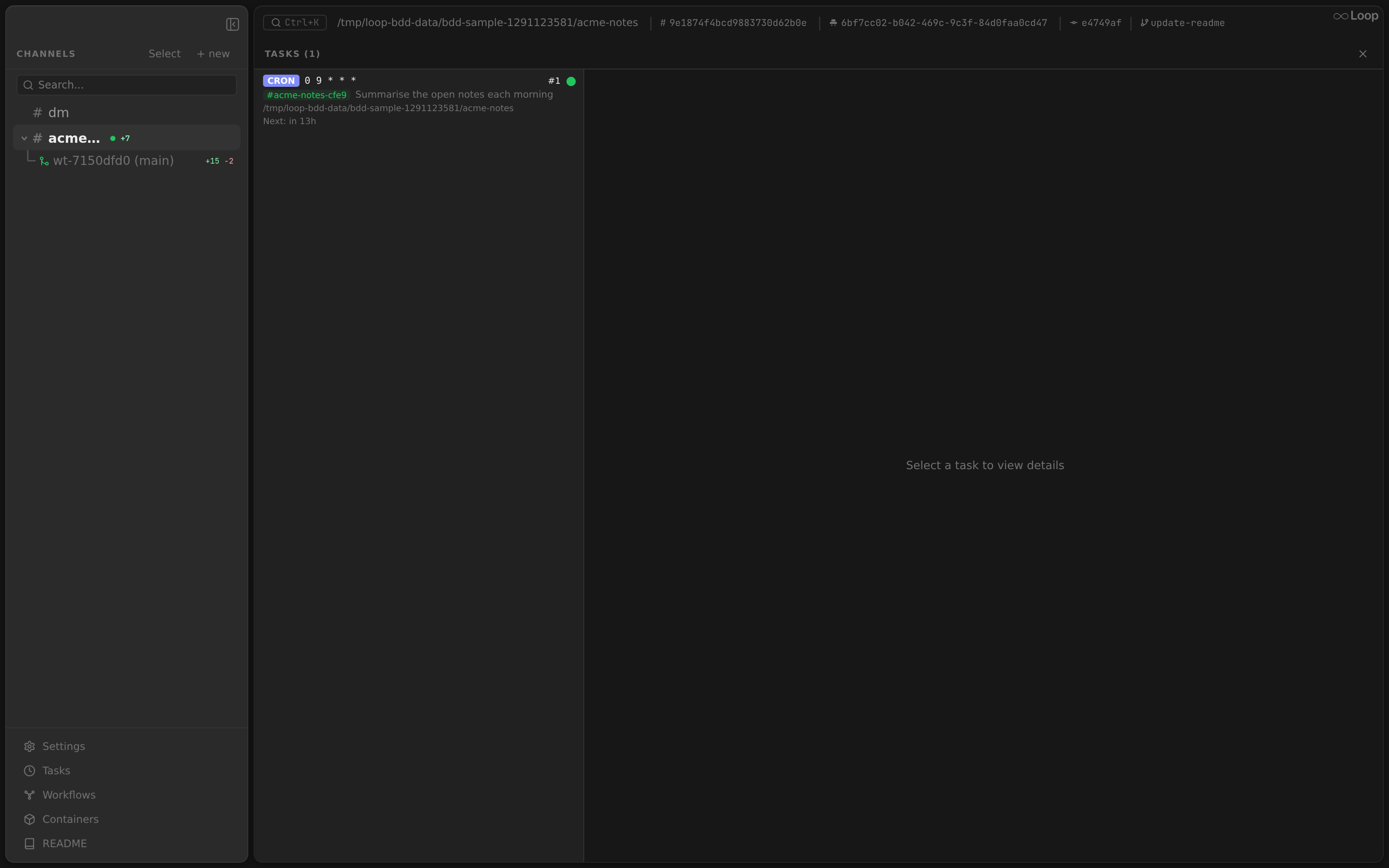
The Tasks panel (tasks panel type, singleton) provides a GUI for managing scheduled tasks within a channel. It can be added to any layout from the panel menu.
Selecting a task and pressing ▶ Run Now triggers it immediately; the run opens as its own thread under the channel, which you can open from the sidebar to watch the agent work.
Layout
The panel is split into two resizable panes:
- Left pane (200-500px): Task list with a
+button to create tasks and a count header. - Right pane: Task detail view showing the selected task’s full details, action buttons, and run history.
Create Form
Clicking + opens an inline form at the top of the task list with fields for:
- Type selector (Cron / Interval / Once)
- Schedule expression (placeholder adapts to the selected type)
- Prompt textarea
- Worktree checkbox (only shown for non-worktree channels with a git repo)
- Origin branch text field (shown when worktree is checked; leave blank for auto-detection)
- Update before run checkbox (shown when worktree is checked; prepends git rebase instructions)
- Auto-delete delay in seconds
Task Detail View
Selecting a task shows:
- Task ID, type badge (color-coded), worktree badge if enabled, and origin branch
- Schedule expression and full prompt text
- Update-before-run indicator when enabled
- Next run time (relative) when enabled
- Auto-delete delay when configured
- Enable/Disable button to toggle the task
- Edit button to open an inline edit form
- Delete button to permanently remove the task
Run History
Below the task details, a scrollable list shows all TaskRunLog entries with:
- Status indicator (green = success, red = failed, yellow = running)
- Relative timestamp
- Error text (on failure)
- Response text preview (truncated to 200 chars)
Real-Time Updates
The panel subscribes to the event stream and refreshes the task list on any task.* event. Run history refreshes on task.run_completed events.
Auto-Deletion
Tasks with auto_delete_sec > 0 support ephemeral execution:
Ephemeral Marker
The agent is instructed to prefix responses with [EPHEMERAL] when there is nothing meaningful to report. The marker is:
- Stripped from the response text before delivery.
- Stripped from streaming turns before the stream tracker records them.
Deletion Flow
When auto_delete_sec > 0 and a thread was created:
- If the response contains
[EPHEMERAL]:- Discord/Slack: The thread is renamed, replacing
⏱with💨(puff emoji) to visually indicate ephemeral status. - Local: The thread name is prefixed with
[ephemeral]. The Electron sidebar shows an undo-arrow SVG icon.
- Discord/Slack: The thread is renamed, replacing
- A
time.AfterFuncis scheduled with the configured delay. - After the delay, the thread is deleted via
bot.DeleteThreadand achannel_deletedevent is broadcast to the UI.
This allows heartbeat-style tasks to create threads that auto-clean when there is nothing to report.
Task Templates
Templates are pre-defined task configurations in the global config. They allow quick deployment of common tasks without typing full schedules and prompts.
Template Fields
| Field | Description |
|---|---|
name | Unique identifier. Used by /loop template-add and for deduplication. |
description | Shown in /loop template-list output. |
schedule | Cron expression, Go duration, or RFC3339 timestamp. |
type | "cron", "interval", "once", or "manual". |
prompt | Inline prompt text. |
prompt_path | File path resolved as ~/.loop/templates/{prompt_path}. |
worktree | Run the agent in an isolated git worktree (default: false). |
origin_branch | Base branch for worktree tasks. Auto-detected from parent repo on first run if not set. |
update_before_run | When true, prepends git fetch/rebase instructions to the prompt before each run. |
auto_delete_sec | Auto-delete delay for the task’s thread. |
Prompt Resolution
Exactly one of prompt or prompt_path must be set:
prompt: The text is used directly as the task prompt.prompt_path: The file at~/.loop/templates/{prompt_path}is read and its contents used as the prompt. This allows long, detailed prompts to be maintained as separate files.
Setting both or neither is an error.
Template Loading
When /loop template-add is invoked:
- The template is looked up by name in the config’s
task_templatesarray. - A check ensures no task with the same
template_namealready exists in the channel (prevents duplicates). - The prompt is resolved via
ResolvePrompt. - A new
ScheduledTaskis created with the template’s settings andtemplate_nameset for tracking.
Template Merging (Project Config)
Project configs can define their own task_templates. Templates are merged by name:
- If a project template has the same
nameas a global template, the project version replaces it. - New template names are appended to the list.
Task Management Commands
All commands are available as slash commands (/loop <command>) and MCP tools.
Create
/loop schedule type:<cron|interval|once|manual> schedule:<expression> prompt:<text> [worktree:<true|false>] [origin_branch:<branch>] [update_before_run:<true|false>]Creates a new task. The scheduler calculates next_run_at and enables the task immediately. Set worktree: true to run the task in an isolated git worktree (see Worktree Isolation
). Optionally set origin_branch to pin the base branch (otherwise auto-detected on first run) and update_before_run: true to prepend git rebase instructions before each execution.
List
/loop tasksLists all tasks for the current channel with their ID, type, status (enabled/disabled), schedule, prompt (truncated to 80 chars), next run time (as relative duration), and auto-delete setting if configured.
Show
/loop task task_id:<id>Shows full details of a single task: type, schedule, status, next run, template name (if from a template), auto-delete setting, and the complete prompt text.
Cancel
/loop cancel task_id:<id>Permanently deletes a task from the database.
Toggle
/loop toggle task_id:<id>Flips a task’s enabled state. Disabled tasks are skipped during poll cycles but remain in the database.
Edit
/loop edit task_id:<id> [schedule:<expr>] [type:<type>] [prompt:<text>] [worktree:<true|false>] [origin_branch:<branch>] [update_before_run:<true|false>]Updates one or more fields of an existing task. If schedule or type changes, next_run_at is recalculated. At least one field must be provided.
Load Template
/loop template-add name:<template_name>Creates a task from a configured template. Prevents duplicate loading of the same template in a channel.
List Templates
/loop template-listShows all configured templates with their name, type, schedule, and description.
Poll Interval
The scheduler polls the database on a fixed interval, configured via poll_interval_sec (default: 30 seconds). This means:
- Tasks may execute up to
poll_interval_secseconds after their scheduled time. - A task whose thread is busy with chat starts later still: it waits until the thread’s queued messages are done (see Scheduled Task Execution ). Other due tasks aren’t held back by it.
- Very short intervals (e.g.
5s) increase database load. - The poll loop uses
time.NewTickerand stops cleanly on context cancellation.
Run Logging
Every task execution is recorded in a TaskRunLog:
| Field | Description |
|---|---|
task_id | The task that was executed. |
status | "running", "success", or "failed". |
response_text | Agent response on success. |
error_text | Error message on failure. |
started_at | When execution began. |
finished_at | When execution completed. |
The log is created with "running" status before execution starts and updated to the final status after the agent returns.