Workflows
Declarative DAG-based pipelines of prompt and bash nodes. Workflows provide repeatable, structured execution with parallel fan-out, dependency tracking, and real-time status events.
Package: internal/workflow
Related docs: Configuration | MCP Server | API | Events
Overview
A workflow is a directed acyclic graph (DAG) of nodes. Each node can be a prompt (AI agent), bash (shell script), loop (iterative prompt), approval (human gate), or plugin (a plugin’s action or tool). Nodes declare dependencies via depends_on; independent nodes execute in parallel.
                    ┌──────────┐
                    │ analyze  │  (bash: gh issue view)
                    └────┬─────┘
                         │
                    ┌────▼─────┐
                    │   plan   │  (prompt: create plan)
                    └────┬─────┘
                         │
              ┌──────────┼──────────┐
              │          │          │
         ┌────▼───┐ ┌───▼────┐ ┌──▼───┐
         │  test  │ │  lint  │ │ docs │   (bash: parallel)
         └────┬───┘ └───┬────┘ └──┬───┘
              │          │         │
              └──────────┼─────────┘
                         │
                    ┌────▼─────┐
                    │  report  │  (prompt: summarize)
                    └──────────┘
Workflows are defined in .loop/config.json (JSONC) alongside task_templates and prompt_shortcuts, using the same global + project config merge-by-name system.
Configuration
Workflows are defined in the workflows array in config. See Configuration: Workflows
for the full field reference.
{
  "workflows": [
    {
      "name": "code-review",
      "description": "Review all changes on the current branch",
      "nodes": [
        { "id": "diff", "type": "bash", "script": "git diff main...HEAD" },
        { "id": "review", "type": "prompt", "depends_on": ["diff"], "prompt": "Review these changes:\n\n{{.NodeOutputs.diff}}" }
      ]
    }
  ]
}
Inputs
Workflows can declare named inputs with descriptions, required flags, and defaults:
{
  "name": "fix-issue",
  "inputs": {
    "issue_url": { "description": "GitHub issue URL", "required": true },
    "branch": { "description": "Target branch", "default": "main" }
  },
  "nodes": [
    { "id": "fetch", "type": "bash", "script": "gh issue view {{.Inputs.issue_url}} --json title,body" }
  ]
}
Required inputs must be provided when starting a run. Inputs with default values are used when the caller omits them. User-provided values override defaults.
Template Interpolation
The prompt, system_prompt, script, when, condition and message fields, and every string in a plugin node’s input, are Go text/template templates:
| Expression | Description |
|---|---|
{{.Inputs.name}} | Value of a named input |
{{.NodeOutputs.node_id}} | Output text from a completed upstream node |
{{.NodeData.node_id.field}} | A field of a plugin tool node’s structured result (see Plugin Node ) |
{{.RunMeta.RunID}} | The workflow run ID |
Besides text/template’s builtins (eq, not, and, or, gt, len, index, printf, …), templates can call:
| Function | Description |
|---|---|
contains s substr, hasPrefix s prefix, hasSuffix s suffix | String tests; a number is compared as its text, nothing as "" |
trim s, lower s, upper s | Trim surrounding whitespace, change case |
fromJSON s | Decodes JSON text, e.g. {{(fromJSON .NodeOutputs.check).score}}; whole numbers decode as integers, so {{gt (fromJSON .NodeOutputs.n) 5}} works |
toJSON v | Encodes v as JSON text |
save_workflow, POST /api/workflows and starting a run reject a template that doesn’t parse, or that calls an unknown function, naming the node and field. A field of NodeData the tool didn’t return renders as <no value>, except in a bash script (see Bash Node
).
Node Types
Prompt Node ("type": "prompt")
Runs an AI agent via Docker container (same path as regular agent requests). The agent receives the rendered prompt and optional system_prompt.
| Field | Description |
|---|---|
prompt | Template-rendered prompt sent to the agent. Mutually exclusive with prompt_path. |
prompt_path | Path to a prompt file, resolved as {loopDir}/workflows/{prompt_path}. Mutually exclusive with prompt. |
system_prompt | Optional system prompt for the agent |
model | Optional model override for the agent (e.g. "claude-sonnet-4-5-20250514") |
The agent’s text response becomes the node’s output, available to downstream nodes as {{.NodeOutputs.<id>}}.
Bash Node ("type": "bash")
Runs a shell script in a Docker container using the same mounts and environment as agent containers.
| Field | Description |
|---|---|
script | Shell command(s) piped to /bin/sh on stdin. Accepts any sh-compatible content — a one-liner, multi-line scripts, pipelines, heredocs. To execute a script file on disk, just invoke it (e.g. bash workflows/build.sh); the bash container shares the same mounts as agent containers. Supports Go text/template rendering against workflow inputs and upstream node outputs. |
User-controllable template values — Inputs, NodeOutputs, ChannelID, and Review.CommentsJSON — are POSIX shell-quoted at render time, so an unquoted spread like echo {{.Inputs.foo}} is safe even if foo contains shell metacharacters. NodeData prints quoted too: a string as itself, an object or a list as its JSON, and numbers and booleans as they are. Its strings still compare as their raw text ({{if eq .NodeData.check.verdict "ok"}}), trim, lower, upper, fromJSON and toJSON keep their results quoted, and a {{range}} over an object skips keys that aren’t plain words (letters, digits, _, ., -). A value that’s missing, like a field the tool didn’t return or an input nobody set, prints as '' rather than <no value>, which the shell would read as a redirect. Inputs, NodeOutputs and ChannelID are already quoted text in a script, so test them with the string functions in when rather than in script. The fully-rendered script is piped to /bin/sh via stdin rather than passed on the command line, so the script body never appears in the spawned process’s argv.
Stdout becomes the node output. A non-zero exit code fails the node.
Loop Node ("type": "loop")
Runs either a single prompt repeatedly, or an ordered sequence of child nodes per iteration, until a condition is met or max_iterations is reached.
| Field | Description |
|---|---|
prompt | Template-rendered prompt sent to the agent each iteration. Mutually exclusive with prompt_path and body. |
prompt_path | Path to a prompt file, resolved as {loopDir}/workflows/{prompt_path}. Mutually exclusive with prompt and body. |
body | Ordered list of child node definitions executed sequentially per iteration. Each child can be a prompt, bash or plugin node; nested loop and approval types are rejected at load time. Children may declare depends_on against siblings for visual edges in the DAG graph; execution order is the array order regardless. Mutually exclusive with prompt / prompt_path. |
max_iterations | Maximum number of iterations (default: 10) |
condition | Go template evaluated after each iteration; stops when it renders "true". A condition that fails to render fails the loop. |
Each iteration’s output is available as {{.NodeOutputs.<id>}} (overwritten each iteration; downstream nodes see the final output). The condition template receives the same RunContext as other templates, plus per-iteration state like {{.Review.*}} populated by the bash review parser (used by the seeded review-loop / review-fix-loop workflows — see Review Panel
).
Per-iteration node runs are persisted as separate rows in workflow_node_runs (keyed by (run_id, node_id, iteration)), so the full execution history of every iteration is preserved.
{
  "id": "refine",
  "type": "loop",
  "depends_on": ["draft"],
  "prompt": "Improve this draft:\n\n{{.NodeOutputs.draft}}",
  "max_iterations": 3,
  "condition": "{{if contains .NodeOutputs.refine \"LGTM\"}}true{{end}}"
}
Loop with a body — runs review → fix → verify per iteration, stops when no comments remain or the comment-id set repeats. Comments the review’s dedup pass marked false_positive or already_fixed don’t count toward either and aren’t in CommentsJSON:
{
  "id": "loop",
  "type": "loop",
  "max_iterations": 3,
  "condition": "{{ or .Review.NoComments .Review.SameAsPrev }}",
  "body": [
    { "id": "review", "type": "bash",   "script": "loop review:run --channel-id {{.ChannelID}} --api-url $LOOP_API_URL --wait --no-verify" },
    { "id": "fix",    "type": "prompt", "depends_on": ["review"], "when": "{{ not .Review.NoComments }}", "prompt": "Fix these review comments and commit:\n\n{{.Review.CommentsJSON}}" },
    { "id": "verify", "type": "bash",   "depends_on": ["fix"],    "when": "{{ not .Review.NoComments }}", "script": "git add -u && git diff --cached --quiet || git commit -m \"fix: address review feedback\"" }
  ]
}
--no-verify skips the review’s verification step
in each iteration. The seeded loops run it once, after the loop, with a node that depends on it:
{ "id": "check", "type": "bash", "depends_on": ["loop"], "script": "loop review:verify --wait" }Approval Node ("type": "approval")
Pauses the workflow and waits for a human response before continuing. The run status changes to paused and a workflow.run_paused event is broadcast.
| Field | Description |
|---|---|
message | Template-rendered message shown to the user (describes what needs approval) |
timeout | Go duration string (e.g. "1h", "30m"); the node fails if no response arrives in time |
When paused, resume via POST /api/workflows/runs/{id}/resume with a JSON body {"response": "..."}. The response text becomes the node’s output. If no response text is provided, the default is "approved".
{
  "id": "approve",
  "type": "approval",
  "depends_on": ["plan"],
  "message": "Review the implementation plan:\n\n{{.NodeOutputs.plan}}\n\nApprove to continue.",
  "timeout": "1h"
}
Plugin Node ("type": "plugin")
Runs an action of an installed plugin , or calls one of its tools, on the plugin’s container in the run’s channel. Loop starts the container if it isn’t running. The channel’s project must enable the plugin, and Loop must run with plugins on; otherwise the node fails.
| Field | Description |
|---|---|
plugin | The plugin’s id |
action | An action id from the plugin’s manifest. Mutually exclusive with tool. |
tool | A tool name from the plugin’s manifest. Mutually exclusive with action. |
input | A JSON object passed as the tool’s or the action’s input. Every string in it, however deep, is rendered as a template; for a tool the result must match the tool’s input_schema. A tool’s defaults to {}; an action without one gets none. |
An action succeeds once the plugin accepts it, with accepted as the node’s output; the plugin does the work afterwards, so a workflow that needs the result calls a tool instead. A tool’s content becomes the node’s output, and an answer marked is_error fails the node, so retry applies. A tool that answers with structured_content, a JSON object, gives later nodes its fields as {{.NodeData.<node id>.<field>}}; a tool that declares an output_schema must answer with one that matches it, or the node fails. The structured result is stored with the node’s run, so it survives a restart. A tool call is capped at 60 seconds unless the node’s timeout is longer. A node without a plugin, with both or neither of action and tool, or with an input that isn’t an object, is rejected by save_workflow and POST /api/workflows, and when a run starts.
{
  "id": "quiz",
  "type": "plugin",
  "plugin": "quiz",
  "tool": "ask",
  "input": { "topic": "{{.Inputs.topic}}", "count": 3 }
}
A later node reads a tool’s structured result:
{ "id": "grade", "type": "plugin", "plugin": "quiz", "tool": "score", "input": { "answer": "{{.NodeOutputs.answer}}" } },
{ "id": "praise", "type": "prompt", "depends_on": ["grade"], "when": "{{ gt .NodeData.grade.score 7 }}", "prompt": "Congratulate: {{.NodeData.grade.verdict}}" }
Retry
Any node can have a retry config for automatic retries with exponential backoff:
{
  "id": "test",
  "type": "bash",
  "script": "make test",
  "retry": { "max_retries": 3, "backoff_base": "1s", "backoff_max": "30s" }
}| Field | Description |
|---|---|
max_retries | Maximum number of retry attempts (0 = no retries) |
backoff_base | Base delay between retries (Go duration, e.g. "1s") |
backoff_max | Maximum delay cap (Go duration, e.g. "30s") |
Delay doubles each attempt: backoff_base * 2^(attempt-1), capped at backoff_max. The attempt field on each node run tracks the current attempt number.
Timeouts
Timeouts enforce execution deadlines at both the workflow and node level.
Workflow Timeout
The timeout field on a workflow definition caps total DAG execution time. If the deadline is exceeded, all running nodes are cancelled and the run fails with error "workflow timeout exceeded".
{
  "name": "deploy-pipeline",
  "timeout": "30m",
  "nodes": [
    { "id": "build", "type": "bash", "script": "make build" },
    { "id": "deploy", "type": "bash", "depends_on": ["build"], "script": "make deploy" }
  ]
}
The timeout applies from the moment StartRun begins DAG execution and also applies to recovered runs (both paused and running) after a server restart. If timeout is empty or an invalid Go duration string, no workflow-level deadline is enforced.
Node Timeout
The timeout field on any node caps that individual node’s execution time. If the node exceeds its deadline, it fails with a context deadline error. Downstream nodes with trigger_rule: "all_success" (the default) will be skipped; nodes with trigger_rule: "all_done" can still proceed.
{ "id": "test", "type": "bash", "script": "make test", "timeout": "5m" }Node timeouts apply to prompt, bash, loop, and plugin nodes. Approval nodes are excluded because they handle timeout internally via their own pause/resume semantics (see Approval Node ).
If a node has both a timeout and retry config, the timeout covers all retry attempts combined — the deadline does not reset between retries. A 5-minute timeout with 3 retries means total execution (including backoff delays) must complete within 5 minutes.
| Level | Field | Behavior on expiry |
|---|---|---|
| Workflow | workflow.timeout | All running nodes cancelled, run status → failed, error "workflow timeout exceeded" |
| Node | node.timeout | Single node cancelled, node status → failed, downstream nodes respect trigger rules |
DAG Execution
Topological Execution
- Build an in-degree map from
depends_ondeclarations - Enqueue all zero-in-degree nodes (no dependencies)
- Each ready node runs in its own goroutine
- On completion, decrement downstream in-degrees and enqueue newly ready nodes
sync.WaitGrouptracks active goroutines;context.Contextenables cancellation
Trigger Rules
The trigger_rule field controls how a node reacts to dependency failures:
| Rule | Behavior |
|---|---|
all_success (default) | Run only if all dependencies succeeded |
all_done | Run if all dependencies reached a terminal state (success, failed, or skipped) |
one_success | Run if at least one dependency succeeded |
Conditional Execution
The when field is a Go template that must evaluate to "true" for the node to execute. If it evaluates to anything else, the node is skipped. On template error, the node defaults to running.
{ "id": "deploy", "type": "bash", "when": "{{eq .Inputs.deploy \"true\"}}", "script": "make deploy" }Version Pinning
When a workflow run starts, the engine snapshots the full workflow definition as JSON into the workflow_def column of workflow_runs. All subsequent execution — including recovery after a server restart — uses this pinned snapshot rather than the live config. This means editing a workflow definition mid-flight won’t affect running or paused runs.
For runs created before version pinning was introduced (empty workflow_def field), recovery falls back to the live config.
Node Heartbeating
While a node is executing, a background goroutine periodically writes the current timestamp to last_heartbeat_at on the node run record (immediate first beat, then every 10 seconds). This serves two purposes:
- UI liveness indicator — The workflows panel shows a heartbeat timestamp next to running nodes so users can see the node is still alive.
- Recovery intelligence — On server restart, the engine uses heartbeat freshness to decide whether a running node was actively executing or stuck (see below).
Recovery on Restart
Workflow state is persisted in the database, so runs survive server restarts. Recovery runs automatically at startup before the API server begins accepting requests.
Paused runs (waiting for approval) are resumed from their DB checkpoint. Completed node outputs are reconstructed, and the paused approval node re-enters the wait loop — it can be resumed via the normal POST /api/workflows/runs/{id}/resume endpoint.
Running runs are recovered using heartbeat-based stale node detection rather than being unconditionally failed. The engine examines each running node’s last_heartbeat_at to classify it:
| Node state | Heartbeat | Recovery action |
|---|---|---|
| Running | Fresh (within 30s / 3× heartbeat interval) | Reset to pending, re-executed |
| Running | Stale (> 30s) or missing | Marked as failed |
| Completed / Skipped | — | Preserved as-is |
| Pending | — | Executes when dependencies are met |
The workflow then resumes from checkpoint: completed work is preserved, fresh nodes are re-executed, and only truly stale nodes are failed. Downstream nodes respect the normal trigger rules, so a trigger_rule: "all_done" node can still proceed past a failed sibling.
If the engine cannot recover a running run (workflow definition not found, malformed inputs, or run semaphore full), it falls back to marking the entire run as failed with error "server restarted while workflow was running".
Concurrency Limits
The workflow_concurrency config controls how many workflow runs and node goroutines may execute in parallel. Both global and project-level configs support this — project values override global ones.
{
  "workflow_concurrency": {
    "max_concurrent_runs": 5,   // max simultaneous workflow runs (0 = unlimited)
    "max_concurrent_nodes": 10  // max simultaneous node goroutines across all runs (0 = unlimited)
  }
}| Field | Description | Default |
|---|---|---|
max_concurrent_runs | Maximum workflow runs executing in parallel. StartRun blocks until a slot is available. | 0 (unlimited) |
max_concurrent_nodes | Maximum node goroutines across all active runs. Ready nodes queue until a slot opens. | 0 (unlimited) |
When a paused run is recovered at startup, the engine attempts to acquire a run semaphore slot. If the semaphore is full (other recovered runs already filled it), the paused run is failed instead of recovered.
Scheduled Workflows
Workflows can be triggered on a schedule using the existing scheduler infrastructure. Instead of setting a prompt on a scheduled task, set workflow_name (and optionally workflow_inputs) to run a workflow on each trigger.
// Schedule a workflow to run every weekday at 9am
{
  "schedule": "0 9 * * MON-FRI",
  "type": "cron",
  "workflow_name": "validate",
  "workflow_inputs": "{}"
}
The scheduler detects workflow_name on the task and delegates to workflow.Engine.StartRun instead of launching an agent prompt. The returned run ID is recorded in the task run log. All schedule types are supported: cron, interval, and once.
Scheduled workflow tasks are managed through the same API and MCP tools as regular scheduled tasks:
| Field | Description |
|---|---|
workflow_name | Name of the workflow to execute (must match a workflows[] entry in config) |
workflow_inputs | JSON object of inputs to pass to the workflow (e.g. {"issue_url": "..."}) |
When workflow_name is set, the prompt field is ignored. The task still supports worktree, origin_branch, and other scheduling fields.
Run Statuses
| Status | Description |
|---|---|
running | DAG is executing |
paused | Waiting for human approval (an approval node is blocking) |
completed | All nodes finished successfully |
failed | At least one node failed |
cancelled | Run was cancelled via API |
Node Statuses
| Status | Description |
|---|---|
pending | Waiting for dependencies |
running | Currently executing |
success | Completed successfully |
failed | Execution error |
skipped | Skipped by when condition or trigger rule |
paused | Approval node waiting for human response |
API
REST Endpoints
| Method | Path | Description |
|---|---|---|
GET | /api/workflows | List workflow definitions, each tagged with its scope (global/project); accepts channel_id/dir_path to resolve project + worktree definitions |
POST | /api/workflows | Add, update, or delete a workflow definition |
POST | /api/workflows/runs | Start a new workflow run |
GET | /api/workflows/runs | List workflow runs (supports channel_id, limit, offset) |
GET | /api/workflows/runs/{id} | Get run detail with node statuses |
POST | /api/workflows/runs/{id}/resume | Resume a paused workflow (body: {"response": "..."}) |
POST | /api/workflows/runs/{id}/cancel | Cancel a running workflow |
POST | /api/workflows/runs/{id}/retry | Retry a completed/failed/cancelled run (returns new run ID) |
DELETE | /api/workflows/runs/{id} | Delete a workflow run (cancels first if active) |
See API: Workflows for request/response schemas.
MCP Tools
Available to agents inside containers:
| Tool | Description |
|---|---|
run_workflow | Start a workflow by name with optional inputs |
get_workflow_run | Get run status and node outputs |
list_workflows | List available workflow definitions |
list_workflow_runs | List recent runs |
cancel_workflow_run | Cancel a running workflow |
resume_workflow_run | Resume a paused workflow with an optional response |
save_workflow | Create or update a workflow definition in global or project config |
delete_workflow | Delete a workflow definition by name |
delete_workflow_run | Delete a workflow run (cancels first if active) |
retry_workflow_run | Retry a completed/failed/cancelled run |
See MCP Server: Workflow Tools .
Real-Time Events
Workflow events are broadcast globally via WebSocket:
| Event | Trigger |
|---|---|
workflow.run_started | StartRun begins DAG execution |
workflow.run_completed | DAG reaches terminal state |
workflow.run_paused | An approval node is waiting for human response |
workflow.node_started | A node goroutine begins |
workflow.node_completed | A node finishes (success, failed, or skipped) |
See Events: Workflow Events .
Per-Node Run View
Every node run stores its rendered input (the bash script, or the resolved
prompt) alongside its full output, and prompt nodes also store the Claude
session id their agent run produced. In the Workflows panel, clicking a node
in the run’s DAG graph expands a detail panel showing Input → Output, and for
prompt nodes the session id (resume it to continue that prompt’s
conversation). These are persisted on workflow_node_runs (input,
session_id) so they survive reload, and ride the workflow.node_completed
event for live updates.
There is no per-workflow chat thread — run output is surfaced in the Workflows panel, not the chat timeline.
UI Panel
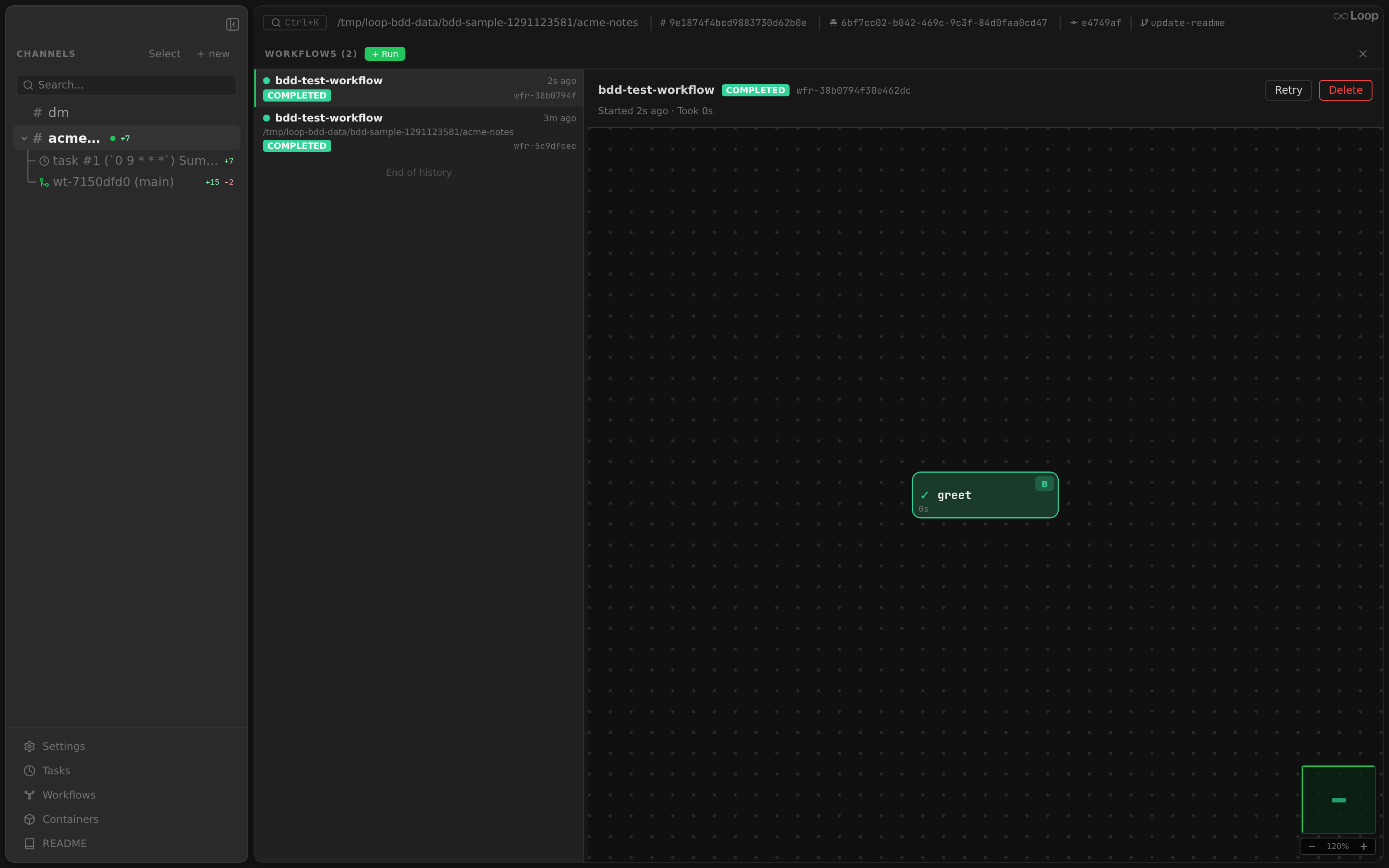
The Workflows panel is available in two variants:
- Global panel — overlay panel accessible from the sidebar, showing runs across all channels. Each run row shows a clickable channel/thread pill (resolved to the nearest named ancestor) and the run’s
dir_path— clicking the pill jumps to that channel. - Embedded split panel — per-channel panel added from the split-pane
+menu. This is a singleton panel (one per layout).
Both variants share the same two-pane layout: a left column and a detail view on the right. The left column lists the available workflow definitions grouped under Global / Project (from ~/.loop/config.json and the project’s .loop/config.json, tagged by the list endpoint — worktree threads inherit their root project’s definitions), with a search box at the top that filters by name and description. Selecting a workflow filters the runs to it (All runs clears the filter), and each row has a ▶ Run button. Run always opens a start dialog showing the workflow’s name + description, its inputs (labelled with name + description, pre-filled with declared defaults — e.g. review-loop’s max_iterations), and the full definition as editable JSON with a Save button that writes changes back to the definition’s config scope (global or project). Start launches the run with the entered inputs. The run list below paginates via infinite scroll — pages of 50 runs are fetched as you scroll within 200 px of the bottom, and polling/WebSocket refreshes preserve the currently-loaded window so already-paginated rows stay visible.
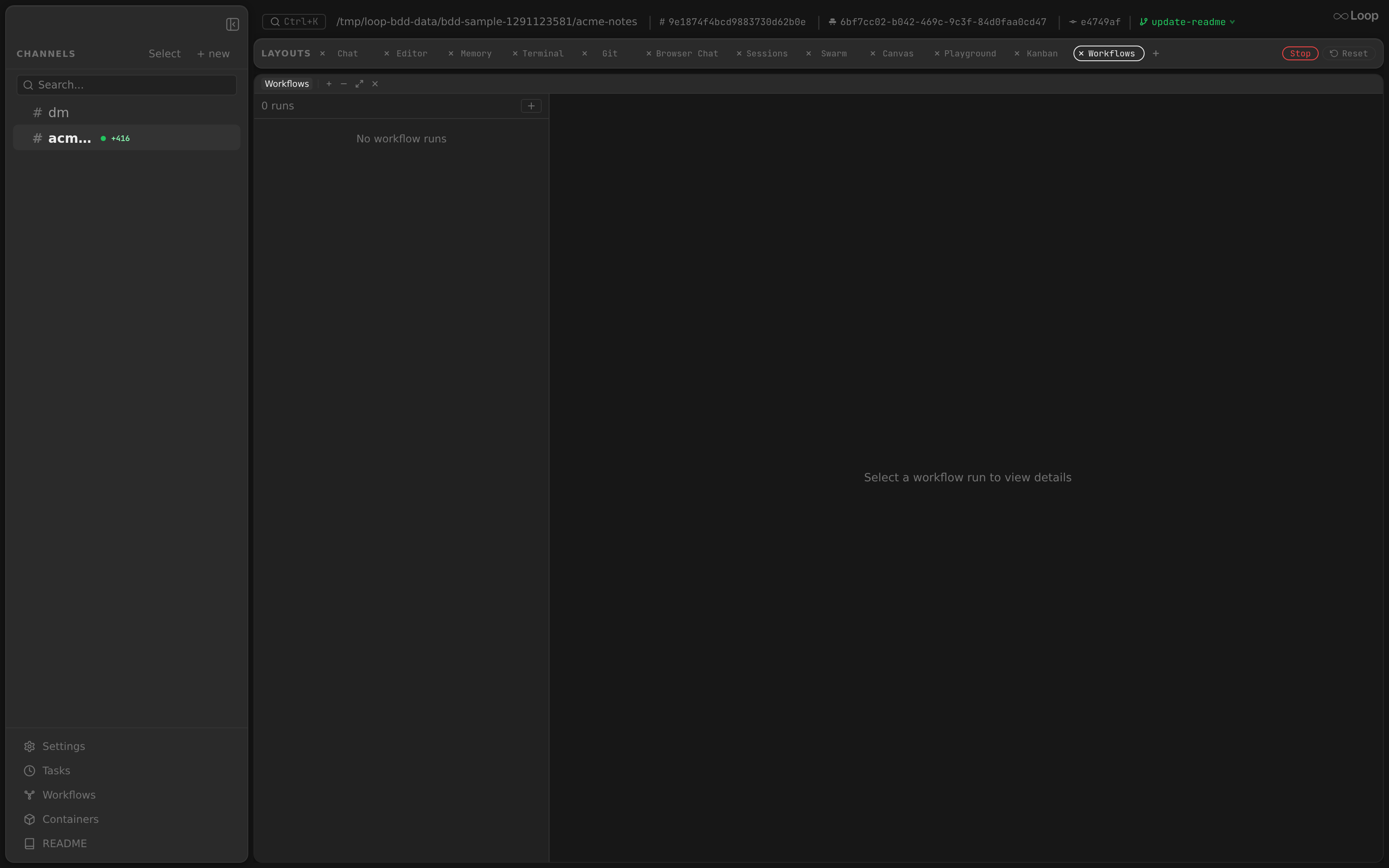
The same panel is also available as a Workflows layout tab scoped to the current project, showing that channel’s runs and their live DAG:
DAG Graph Visualization
The detail view renders an interactive SVG DAG graph (WorkflowGraph component). Nodes are laid out in topological layers using a longest-path algorithm, with independent nodes stacked vertically within the same layer.
Canvas features:
- Dot grid background — scales with zoom level for spatial orientation
- Pan — click and drag the canvas background to pan
- Zoom — scroll with Ctrl/Cmd held, or use the
+/-buttons. Zoom is anchored to the cursor position - Minimap — bottom-right corner shows a scaled overview of the full graph. The viewport rectangle is draggable and click-to-jump
- Auto-fit — on first load, the graph auto-fits and centers all nodes in the viewport
Node rendering:
- Color-coded by status: pending (dim), running (indigo, animated pulse), success (green), failed (red), skipped (gray), paused (amber)
- Type badge:
P(prompt),B(bash),L(loop),A(approval),X(plugin) - Retry badge when
attempt > 1 - Elapsed time for running/completed nodes
- Cubic bezier edges between dependent nodes with directional arrowhead markers
Node output: Click a node to expand its output in a 50/50 split below the graph canvas. Click again to collapse.
Loop body expansion: When a loop node has a body, the graph renders every executed (or in-flight) iteration’s body children as their own visible nodes, grouped inside a dashed container labeled <loop-id> · N iters. One column of children per iteration is laid out left-to-right; cross-iteration edges connect the last child of iteration i to the first child of iteration i+1. Clicking a synthetic child opens its per-iteration output. The loop container itself is not clickable — there is no loop-level output; the children carry the data.
Approval widget: When a run is paused at an approval node, an inline widget appears with the approval message, a text input for the response, and Approve/Reject buttons.
Definition fallback: When the definitions API returns no match (e.g. in the global panel without a project context), the graph falls back to the workflow_def JSON snapshot stored on the run record. As a last resort, node definitions are synthesized from the node run data.
Database
Workflow state is persisted in SQLite:
workflow_runs table
| Column | Type | Description |
|---|---|---|
id | TEXT PK | Run ID (e.g. wfr-a1b2c3d4) |
workflow_name | TEXT | Workflow definition name |
channel_id | TEXT | Channel context |
dir_path | TEXT | Project directory |
status | TEXT | running, paused, completed, failed, cancelled |
inputs | TEXT | JSON-encoded input values |
paused_node_id | TEXT | Node ID that caused the pause (empty when not paused) |
error_text | TEXT | Error message on failure |
workflow_def | TEXT | JSON snapshot of the workflow definition at run start time (version pinning) |
started_at | TIMESTAMP | Run start time |
finished_at | TIMESTAMP | Run end time (null while running) |
workflow_node_runs table
| Column | Type | Description |
|---|---|---|
id | INTEGER PK | Auto-increment ID |
run_id | TEXT FK | Parent workflow run ID |
node_id | TEXT | Node identifier |
iteration | INTEGER | Loop iteration index (0 for nodes outside a loop body, 0..N for nodes inside one). Unique key is (run_id, node_id, iteration). |
status | TEXT | pending, running, success, failed, skipped |
input | TEXT | Rendered node input: bash script / resolved prompt / plugin tool or action input (empty for loop/approval, and for an action without input) |
session_id | TEXT | Prompt node’s Claude session id (resumable transcript); empty otherwise |
output | TEXT | Node output text |
data | TEXT | A plugin tool node’s structured result, as JSON; empty otherwise |
error_text | TEXT | Error message on failure |
attempt | INTEGER | Execution attempt number |
started_at | TIMESTAMP | Node start time |
finished_at | TIMESTAMP | Node end time |
last_heartbeat_at | TIMESTAMP | Last heartbeat from the running node (updated every 10s) |
Architecture
// Engine orchestrates workflow execution.
type Engine interface {
    StartRun(ctx context.Context, opts StartRunOptions) (string, error)
    ResumeRun(ctx context.Context, runID, response string) error
    CancelRun(ctx context.Context, runID string) error
    GetRun(ctx context.Context, runID string) (*db.WorkflowRun, []*db.NodeRun, error)
    ListRuns(ctx context.Context, channelID string, limit, offset int) ([]*db.WorkflowRun, error)
    ListWorkflows(ctx context.Context, dirPath string) ([]config.WorkflowDef, error)
    RecoverRuns(ctx context.Context) error
}
The engine is wired in cmd/loop/serve.go using the same DockerRunner for both prompt nodes (via Runner.Run()) and bash nodes (via Runner.RunBash()). RecoverRuns is called at startup to resume paused workflows and recover running ones using heartbeat data (see Recovery on Restart
). Workflow definitions are loaded from the merged config (global + project) and reloaded on each run to pick up config changes without restart — but in-flight runs use the version-pinned snapshot stored at start time. Concurrency limits are set at engine creation from WorkflowConcurrency config — see Concurrency Limits
.